Testing OCR with Chrome Built-in AI

Sorry for the lack of posting this month. I'm on the way back home from speaking at CodeStock so I've been on the road a bit, and work has been incredibly busy (which is good!) so my usual blog cadence has slipped a bit. Luckily I had a great question in my session on Chrome's Built-in AI which led to a bit of investigating last night. The question involved how well Chrome's AI could do OCR on an image. I had a demo in my presentation showing using AI to describe an image and another to generate a list of tags, but not one specifically for OCR. Here's what I found.
Oh, before I get into the code - remember that as of the time I'm writing this, the Prompt API in Chrome is still behind a flag. Check the docs for what you need to enable in order to run my tests yourself.
The First Test
My initial plan was two-fold:
- Ask the built-in AI to find and return text from the image.
- Ask the built-in AI to return bounding boxes for text found in the AI.
To be clear, none of this is new in any way. People tend to forget we had AI-driven APIs for years before the GenAI explosion came about. Microsoft, Amazon, and more had basic APIs that covered exactly what I listed above.
But being able to do it on device could be really compelling - especially in a case where a user may be offline.
I started with a fork of my basic "what is this image" code: https://codepen.io/cfjedimaster/pen/bNEMbrX. This demo lets you pick an image from your device, it renders a quick preview, and then runs this:
async function analyze() {
	$result.innerHTML = '';
	if(!$imgFile.value) return;
	console.log(`Going to analyze ${$imgFile.value}`);

	if(!session) {
		console.log('creating the session');
		session = await LanguageModel.create({
		  expectedInputs:[{type: 'image'}],
			monitor(m) {
        m.addEventListener("downloadprogress", e => {
        	console.log(`Downloaded ${e.loaded * 100}%`);
	        /*
          why this? the download event _always_ runs at
          least once, so this prevents the msg showing up
          when its already done. I've seen it report 0 and 1
          in this case, so we skip both
          */
          if(e.loaded === 0 || e.loaded === 1) return;
          $result.innerHTML = `Downloading, currently at ${Math.floor(e.loaded * 100)}%`;
        });
    	}
		});
	}
	$result.innerHTML = 'Working on analyzing picture.';
	console.log(session);

	let result = await session.prompt([
		{
			role:'user',
			content: [
				{ type:'text', value:'Create a summary description of the image.'},
		  	{ type: "image", value: $imgFile.files[0]}
			]
		}
	]);

	console.log(result);
	$result.innerHTML = result;
}
This code block handles creating the session once and then passing the user's selected image to the model and return a description.
My new version made a few changes. First, I defined a JSON Schema to structure my results into an array of text and bounding box values:
const schema = {
	type:"array",
	items: {
		type:"object",
		properties: {
			text: { type: "string", description: "Text found in picture" },
			topLeft: {
				type:"object",
				properties: {
					x: {
						type:"number", description: "Top left horizonatal position of the bounding box for the found text."
					},
					y: {
						type:"number", description: "Top left vertical position of the bounding box for the found text."
					},

				}
			},
			bottomRight: {
				type:"object",
				properties: {
					x: {
						type:"number", description: "Bottom right horizonatal position of the bounding box for the found text."
					},
					y: {
						type:"number", description: "Bottom right vertical position of the bounding box for the found text."
					},

				}
			},

		}
	}
};
Next, I modified how I created the session, using a system instruction to help guide the results:
session = await LanguageModel.create({
        expectedInputs:[{type: 'image'}],
        initialInputs: [
            {
                role: 'system',
                content:
                    'Your job is to extract and find text in an image. Return each block of text along with a X,Y position for the top left and bottom right block that covers the image.'
            }
        ],
        monitor(m) {
            m.addEventListener("downloadprogress", e => {
                /*
                why this? the download event _always_ runs at
                least once, so this prevents the msg showing up
                when its already done. I've seen it report 0 and 1
                in this case, so we skip both
                */
                if(e.loaded === 0 || e.loaded === 1) return;
                $result.innerHTML = `Downloading, currently at ${Math.floor(e.loaded * 100)}%`;
        });
    }
});
And when I pass my image to the model, I include the schema:
let result = await session.prompt([
    {
        role:'user',
        content: [
            { type: "image", value: $imgFile.files[0]}
        ]
    }
], { responseConstraint: schema });
At this point, I could get a quick result. Given this image:

I got this result:
[
  {
    "text": "MCP as Your CMS Helper",
    "topLeft": {
      "x": 150,
      "y": 100
    },
    "bottomRight": {
      "x": 340,
      "y": 100
    }
  },
  {
    "text": "Webflow Developers",
    "topLeft": {
      "x": 100,
      "y": 300
    },
    "bottomRight": {
      "x": 210,
      "y": 300
    }
  },
  {
    "text": "<>",
    "topLeft": {
      "x": 500,
      "y": 150
    },
    "bottomRight": {
      "x": 600,
      "y": 250
    }
  }
]
The text values were perfect. I mean heck, it picked up the <> bit which is technically text. However, the bounding boxes were off. Now, I'm not convinced this isn't my fault. I checked, and double checked, the way I worded the schema, and as far as I know I'm asking the right question, but the boxes never seemed to actually match the area of the text.
I decided to give up on the idea of requesting the boxes but may come back to it later. (Especially if an eagle-eyed reader finds a dumb mistake I made.)
You can see this full demo below:
See the Pen Testing Chrome OCR Capabilities (2) by Raymond Camden (@cfjedimaster) on CodePen.
A Quick Aside
In the demo above, if you can actually run it, I added a quick utility to draw the bounding boxes on the image. This utility was created by Claude Code and it actually works really well. You begin by wrapping the image from the DOM:
const img = document.querySelector('#my-image');
const annotator = makeImageAnnotator(img);
And then just draw your rectangles:
// Draw a box: upper-left (50, 30), lower-right (200, 150)
annotator.drawBox(50, 30, 200, 150);

// Optional style overrides
annotator.drawBox(10, 10, 80, 80, { color: 'red', lineWidth: 3 });
There's even a reset:
// Clear all boxes
annotator.clearBoxes();
I built a CodePen just for this little utility and as there's no use of Chrome AI in here, it should work fine for everyone:
See the Pen Annotator Test by Raymond Camden (@cfjedimaster) on CodePen.
One note - if you make use of this - notice I check to ensure the image is done loading before I annotate. That's required for this utility.
The Second Test
So - giving up on the idea of creating bounding boxes, I pivoted to a new version that focused on just the text. First, my schema got a lot simpler:
const schema = {
	type:"array",
	items: {
		type:"string",
		description:"The extracted text."
	}
};
And then I simplified my system instruction:
session = await LanguageModel.create({
    expectedInputs:[{type: 'image'}],
    initialInputs: [
        {
            role: 'system',
            content:
                'Your job is to extract and find text in an image. An image may have multiple blocks of text. Return each block of text.'
        }
    ],
    monitor(m) {
        m.addEventListener("downloadprogress", e => {
	        /*
          why this? the download event _always_ runs at
          least once, so this prevents the msg showing up
          when its already done. I've seen it report 0 and 1
          in this case, so we skip both
          */
          if(e.loaded === 0 || e.loaded === 1) return;
          $result.innerHTML = `Downloading, currently at ${Math.floor(e.loaded * 100)}%`;
        });
    }
});
And then I ran some tests. First, a super simple stop sign:
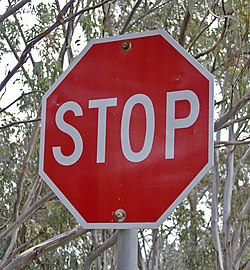
Which returned... "STOP". Perfect. Stupid simple, but perfect.
Next is a sign filled with more signs:
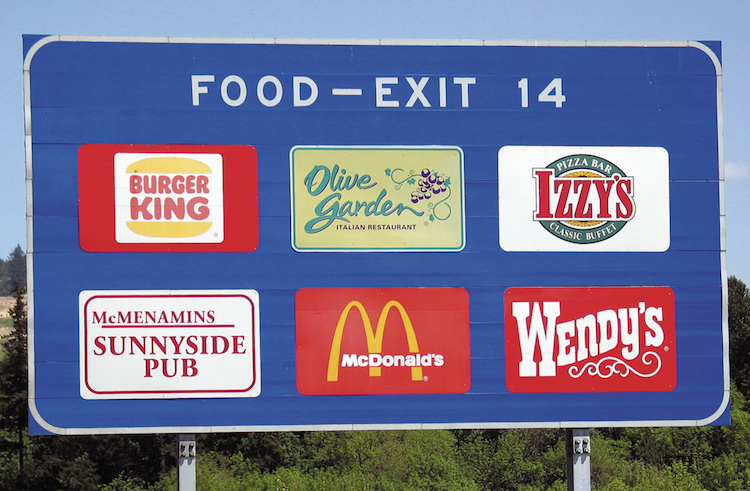
The result was pretty impressive (line breaks you see below were from me):
FOOD - EXIT 14, Burger King, Olive Garden ITALIAN RESTAURANT,
Izzy's CLASSIC BUFFET, McMenamins SUNNYSIDE PUB, McDonald's,
Wendy's
Finally, I tested that first image (the MCP as Your CMS Helper one above) and oddly... the results weren't quite as good. Sometimes I only got "MCP as Your CMS Helper". That's the primary text so I guess that's good, but I was surprised it missed the other blocks. And yet other times I'd get a bit more, like just now when I tested I got "Webflow Developers". Just seems odd that this version of the script sometimes returns a bit less than the one where I tried to annotate. Maybe it would make sense to keep the same schema and simply ignore the bounding box values, but that feels wrong.
You can see the full code of this below:
See the Pen Testing Chrome OCR Capabilities (3) by Raymond Camden (@cfjedimaster) on CodePen.
The Final Boss
As a last test, I tried something pretty intense - a JPG export from a PDF with lots of dense text. You can see it here, and honestly, it's a bit too small for even me to read:

The results were not as good:
HOW TO PLAY, Part 1: The Basic Rules, Part 2: Using These Rules,
Part 3: The Role of the Dungeon Master, Part 4: Character Creation,
GAME DICE, INTRODUCTION
I did try a larger and higher resolution version (about 4x the size) and did not see a noticeable change in results. I don't think we will be using this API to OCR books anytime soon, but it did seem to do a reasonable job with signs and such. I'd call that a fair bargain for something running on the device without needing a remote API.
As always, let me know what you think. Also, I should note that Transformers.js can also support this. I haven't tested it myself, but here's a post from their community showing an example. You can run their demo here: https://texocr.netlify.app/
Photo by mos design on Unsplash