Building a Bluesky Sentiment Dashboard with Alpine and Chrome AI

Good morning, programs! Today I'm sharing yet another example of Chrome's on-device AI features, this time to demonstrate a "Bluesky Sentiment Dashboard". In other words, a tool that lets you enter terms and then get a report on the average sentiment for posts using that word. I actually did this before (and yes, I forgot until about a minute ago) last year using Transformers.js: Building a Bluesky AI Sentiment Analysis Dashboard. I also built this for Twitter, before it went down the toilet, killed off API access, etc. etc., but I can't seem to find it in my archives so maybe I'm hallucinating. That being said, earlier this week I thought I'd try building this because honestly I had forgotten about my previous demo, but it gave me a chance to play more with Chrome's AI tooling. Interesting enough, in that post from last year I mentioned possibly adding Shoelace for UI which I actually did for this demo... so not a total waste of time, right? Let's get into it!
Bluesky's Search API
So one big change from the previous post is that the public, unauthenticated search endpoint at https://public.api.bsky.app/xrpc/app.bsky.feed.searchPosts now returns a 403. You can't use it. I believe this was done to stop scrapers which is a bummer, but oddly, the authenticated endpoint at https://api.bsky.app/xrpc/app.bsky.feed.searchPosts works just fine, even without authentication. So for example, this will search for me: https://api.bsky.app/xrpc/app.bsky.feed.searchPosts?q=Raymond+Camden
My trust in this is absolutely not 100%, but that's enough to build a demo, right? For my dashboard I decided on:
- Alpine.js - I almost always try to go vanilla for web demos, but when I'm building something a bit complex, I love Alpine for what it provides and how little it impacts the "weight" of my application.
- Shoelace - This is a UI library of web components that I've used before and dig. It's been replaced with Web Awesome but I haven't yet made the move to it yet.
- And as always mentioned, Chrome AI, specifically the Prompt API
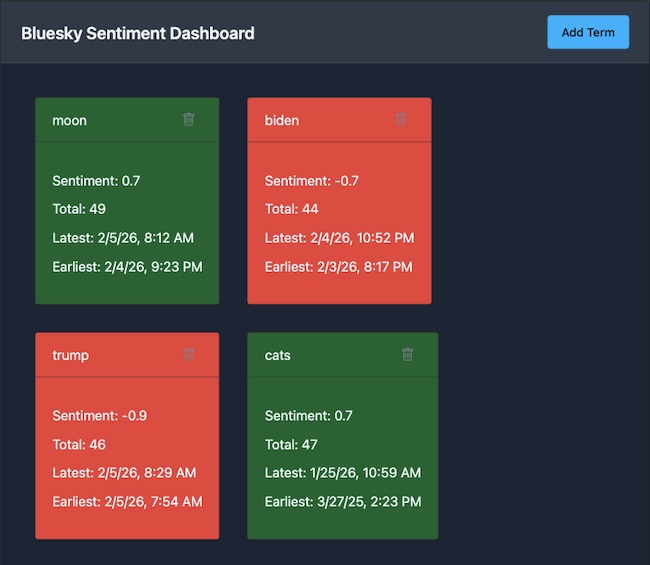
Here's a screen shot of it in action:
Ok, let's get to it!
The HTML
I'm not going to share all of the HTML here (don't worry, I'll link to the repo at the end), but instead focus on the main app where Alpine comes into play. I've got a top level header that handles informing the user of when work is being done as well as handling the ability to add a keyword:
<header class="header">
<h1 class="header__title">Bluesky Sentiment Dashboard</h1>
<span x-text="running ? 'Searching and Analyzing...' : ''"></span>
<sl-button variant="primary" @click="showAddTerm">Add Term</sl-button>
</header>
My report content is a set of cards, each reporting on sentiment as well the total number of posts and the earliest and most latest result:
<template x-for="card in cards" :key="card.term">
<sl-card class="card-header" :class="{'bad': card.sentiment < -0.5, 'good': card.sentiment > 0.5}">
    <div slot="header">
    <span x-text="card.term"></span>
    <sl-icon-button name="trash" label="Delet Term" title="Delete Term" @click="deleteTerm(card.term)"></sl-icon-button>
    </div>
    <p>
    Sentiment: <span x-text="card.sentiment"></span>
    </p>
    <p>
    Total: <span x-text="card.total"></span>
    </p>
    <p>
    Latest: <span x-text="formatDate(card.latest)"></span>
    </p>
    <p>
    Earliest: <span x-text="formatDate(card.earliest)"></span>
    </p>
</sl-card>
</template>
You can also see where I'm conditionally adding in a bad or good class based on sentiment, and seeing it in front of me I think I'd rather have that in data so the HTML could be simpler. I'll probably address that later this week so that's an FYI if you read this in the future.
Next, I've got a dialog for adding a term:
<sl-dialog label="Add Term" @closed="resetForm" x-ref="addTermDialog">
<p>
<sl-input x-model="term" placeholder="Enter a term" x-model="term"></sl-input>
</p>
<p>
<sl-button variant="primary" @click="addTerm">Add</sl-button>
<sl-button variant="secondary" @click="resetForm">Cancel</sl-button>
</p>
</sl-dialog>
That's it, except for one special dialog I'll mention in a sec. Ok, on to the JavaScript.
The JavaScript
Alright, as with the HTML, I'm not going to share every single line, but focus on the important bits. First, let's talk about Chrome's Prompt API. As I've mentioned in previous posts, this API is still behind a flag in the browser (it's GA for extensions), so checking for it requires a few things. I've wrapped it like so:
async function canDoAI() {
    if(!window.LanguageModel) return false;
    return (await LanguageModel.availability()) !== 'unavailable';
}
Now, the availability() method can return a few different things:
- unavailable - nothing you can do, period
- available - golden!
- downloading/downloadable - it needs to download, or is currently doing so
If the model is not available but can be downloaded, you must wait for "user interaction" before starting that process. This can be checked with navigator.userActivation.isActive. Basically, any click is enough, but to handle this, my logic does this:
let available = await LanguageModel.availability();
if(available === 'downloadable') {
    // we need to show a modal so they can click to confirm, and navigator.userActivation.isActive will be true
    this.$refs.dlDialog.show();
} else {
    await this.makeSession();
}
That dlDialog is another modal in the HTML that basically warns the user about the download. When you close this dialog, this event fires:
async closeWarningDialog() {
    this.$refs.dlDialog.hide();
    this.makeSession();
},
Which handles the firing the method to make my model instance. I do not provide UI feedback about the download process in this demo, but I usually do, so I'll probably update that soon as well. That being said, here is makeSession:
async makeSession() {
    console.log('Making session');

    this.session = await LanguageModel.create({
        initialPrompts: [
            {role:'system', content:'You rate the overall sentiment of a set of social media posts, separated by ---. Analzye them all and average out the sentiment, giving it a score from -1 to 1 with -1 being the most negative, and 1 being the most positive.'}
        ]
    });

},
Whew. Ok, that's the AI setup phase. As for the actual searches, I make use of localStorage to save a JSON-encoded array of strings. This is checked on startup, and whenever you add or a delete a term, I persist it. The actual "search and report" is done in the heartbeat method:
async heartBeat() {
    if(this.running) return;
    this.running = true;
    console.log('Heartbeat, current terms: ', this.terms, new Date().toISOString(), navigator.userActivation.isActive);
    // I don't like this - need to change logic to - remove cards for terms that don't exist anymore
    this.cards = [];
    /*
    for each term:
        i call BS API to get terms, i filter down to just the text, but also
        want the total # i got, and the datetime of the most recent and earliest

        I then ask Chrome to perform a sentiment analysis on the text, from -1 to 1
        I then render cards

    */
    for(let term of this.terms) {
        console.log('Analyzing term: ', term);
        let results = await searchBS(term);
        console.log('Results: ', results);
        // create a block of text from the posts
        let text = results.posts.map(p => p.record.text).join('\n---\n');
        let sentiment = await this.session.prompt(text, {responseConstraint:SCHEMA});
        console.log('Sentiment: ', sentiment);
        this.cards.push({
            term: term,
            sentiment: sentiment,
            total: results.total,
            latest: results.latest,
            earliest: results.earliest
        });
    }
    this.running = false;
},
You can see the basic loop over the terms. Each term is sent to the Bluesky API:
async function searchBS(term) {
    let req = await fetch(`https://api.bsky.app/xrpc/app.bsky.feed.searchPosts?q=${encodeURIComponent(term)}s&limit=50&sort=latest`);
	let d = await req.json();
    return {
        posts: d.posts,
        total: d.posts.length,
        latest: d.posts[0].record.createdAt,
        earliest: d.posts[d.posts.length - 1].record.createdAt
    };
}
And then the text is smooshed (technical term) together and passed to the model. SCHEMA is a JSON schema used to shape the results:
const SCHEMA = {
    title:"Sentiment",
    description:"A rating of the sentiment (bad versus good) of input text. Very bad is rated at -1, very good at 1.",
    type:"number",
    minimum:-1,
    maximum:1
};
Lastly, I update this.cards which is an Alpine variable and is what was used in the HTML above to render out a bunch of Shoelace Card elements. Whew.
Try It!
If you've got the Prompt API enabled, you can try this yourself here: https://cfjedimaster.github.io/webdemos/bs_sentiment/. (And I'm just noticing - along with providing download feedback - I need to show an alert for unsupported browsers... version 2!). You can check out the complete code for the app here: https://github.com/cfjedimaster/webdemos/tree/master/bs_sentiment